Joining IOM3
Who can join IOM3?
Anyone can become a member of IOM3 – you don’t have to have an academic qualification in materials, minerals or mining. Affiliate membership is open to anyone who would like to take advantage of our information resources, networking opportunities or online services. We have Student membership for current students and we recognise those with experience and qualifications with appropriate professional grades, from Technician to Fellow.
Use our Grade Finder tool to find the level of membership that is right for you
Visit our Types of Membership page to find out about our various membership grades, any associated requirements and how to apply.
What types of membership does IOM3 offer?
Our types/grades of membership range from Student for those starting out on their career, through Technician, to Member and Fellow, for senior members with an established reputation in materials, minerals and mining technology. We also offer Affiliate membership for anyone interested in materials, minerals or mining science and technology – you do not need any formal qualifications.
Use our Grade Finder tool to find the level of membership that is right for you
Visit our Types of Membership page to find out about our various membership grades, any associated requirements and how to apply.
What are the benefits of membership?
Benefits of IOM3 membership include a free members’ magazine, online access to premium web content, discounts on IOM3 events, training courses and services, networking opportunities, professional development advice and a host of other benefits.
To find out in more detail about what benefits IOM3 membership offers, visit our Membership Benefits page.
Can I join instantly/online?
How do I check if my degree qualifies me for IOM3 membership?
I used to be a member. How do I rejoin?
Current members
What is my membership number?
How do I access online member benefits?
I’m trying to get a member discount for an event but I can’t see a member ticket.
You need to be logged in as a Member to access Member tickets, however you will not be able to see Member tickets if you have any outstanding payments. Discounted event registration is only available to fully paid up members. Please check your login details - if you can't remember these please use the forgotten password function.
It is also possible that duplicate accounts have been created using different email addresses. Please contact our Membership Team to check your member record.
How do I log in or get my password?
I've moved house / changed company - how do I update my contact details?
I've stopped receiving my free magazine - how can I find out why?
Have you moved house or job? Are your contact details up to date? Log in and check the details we hold for you. To update your work address details please use "edit my work details" in the portal. You can check your magazine preferences under My Preferences.
Please note that if you have overdue membership fees, you will not receive a copy of the magazine until these have been paid.
Student members have access to the online version of Materials World. If you want to receive a printed copy, please contact [email protected] and confirm the address to which your magazine should be sent.
I’m not getting any email communications from IOM3
You should be getting regular communications from IOM3 in a Members’ newsletter as well as information relating to your membership. If you’re not receiving these please initially check your junk folder, or make sure that you have the address [email protected] in your email whitelist and/or your organisation spam filter is not stopping these emails.
Please also log in to your website account and check My Preferences where you can opt in to getting email communications and select your technical preferences, which will determine what communications we send you about IOM3 activities.
If you continue to have issues with receiving emails from us, please contact us and we will look into this in more detail.
How do I access journals?
Log in to the website using your member credentials. After logging in successfully you are shown your My IOM3 "welcome" page. In the right hand sub-menu you will see an "Access publications" link.
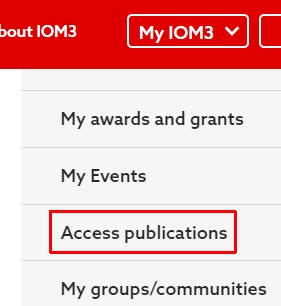
Navigate to that page and click the "Access journals" link in it.
You will then be taken to the Sage website in a new window where you will automatically be recognised as an IOM3 member. You should see "I have access via: Institute of Materials, Minerals & Mining (IOM3)" in the top right of the page. You will now be able to access journals content on that site without charge. Note you do not need to log in or register separately on the Sage site once you have gone there via the link from My IOM3.
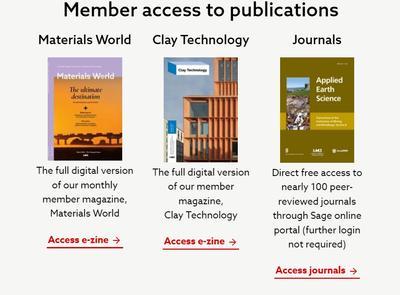
You can also access the journals portal from the main My IOM3 page where, after scrolling down a little way, you will see this box:
Login and profile problems
I’ve forgotten my password
I’m getting an error message when I request a password reset
If you see any sort of error when trying to log in please email [email protected]
I am an IOM3 member and I have never logged in before, what do I do?
To securely access the new portal for the first time, members are required to update their password, using their email address. Visit the forgotten password page and enter your email address and you will be sent a verification code to use on the website before you update your password.
Once you’ve reset your password you will be logged in. The first time you log in you’ll be prompted to review and update the information we have on record for you and to accept the IOM3 Code of Conduct.
When completed you can navigate to the member homepage where you can:
- View, download and pay current invoices (an email receipt will be issued)
- View and download historic invoices
- Access online benefits and member discount codes
- Update personal and work details
- Update sector/local society/magazine interests
I'm getting an error message when trying to log in for the first time
My password won't save
I wish to update my name, title, date of birth or postnominals
I am getting an error entering a phone number
My organisation details are wrong
Please make sure you include address details for your organisation, including post code and country, to avoid adding bad data to our system. Incomplete data will be rejected.
I have another problem related to logging in or my profile
Please contact [email protected] or our membership team whose details are provided in the footer of the member portal pages.
Membership fees and payment
How do I pay my membership fees?
How do I get a receipt for my membership subscriptions?
How do I claim tax relief for my membership subscriptions?
How can I get a proforma invoice for my subscription?
Should you require a proforma invoice prior to payment, please go to invoice history (member login required) to see any unpaid amounts and download a copy of the proforma invoice.
Upgrading and chartered registration
How do I upgrade my membership?
How do I become Chartered?
First you will need to check that you meet the educational and competence requirements. To do this please read the guidelines and checklist.
Not sure? Please contact [email protected] for further advice, or phone +44 (0) 20 7451 7300.
What is meant by Registration?
The Institute holds licences to award the following professional registrations:
- Engineering: Chartered Engineer (CEng), Incorporated Engineer (IEng), and Engineering Technician (EngTech).
- Environment: Chartered Environmentalist (CEnv) and Registered Environmental Practitioner (REnvP).
- Science: Chartered Scientist (CSci), Registered Scientist (RSci), and Registered Science Technician (RSciTech).
Can I have more than one registration?
How can I find out which Chartered registration is relevant for me?
I have an enquiry not covered here, how can I get in touch?
Special interests & IOM3 communities
Can I register my areas of interest? How does the Institute relate to these?
Does the Institute have local meetings?
Other enquiries or problems
If your query relates to membership in particular (upgrading an existing membership or applying for a new membership) please use our membership enquiry/upgrade form. If you are having a technical problem with this website please use our website issues form. For all other enquiries please use the form below, selecting the relevant IOM3 department.